 Go up
Go up


Introducing Scatter Plots
Posted on May 26, 2020 by Admin
Hello readers! We hope you are doing well, and thank you for your continued support of SimplyAnalytics. We are excited to announce that scatterplots are officially live! Scatter plots are a great way to visualize the relationship between two different data variables, and we know you will enjoy them as much as we do.
Let’s take an in-depth look at this new feature.
What is a scatter plot?
A scatter plot is a graphical representation where the values of two data variables are plotted along the x and y axis. Each dot represents both the x and y values for a single location, such as a ZIP Code or county.
Why use a scatter plot?
Scatter plots enable users to identify correlations between two different variables. Let’s take a look at an example below using SimplyAnalytics where we’ll use the % of Adults (25+) with a college degree and Median Household Income to see if there’s a correlation between the variables for Counties in the USA.
Getting Started
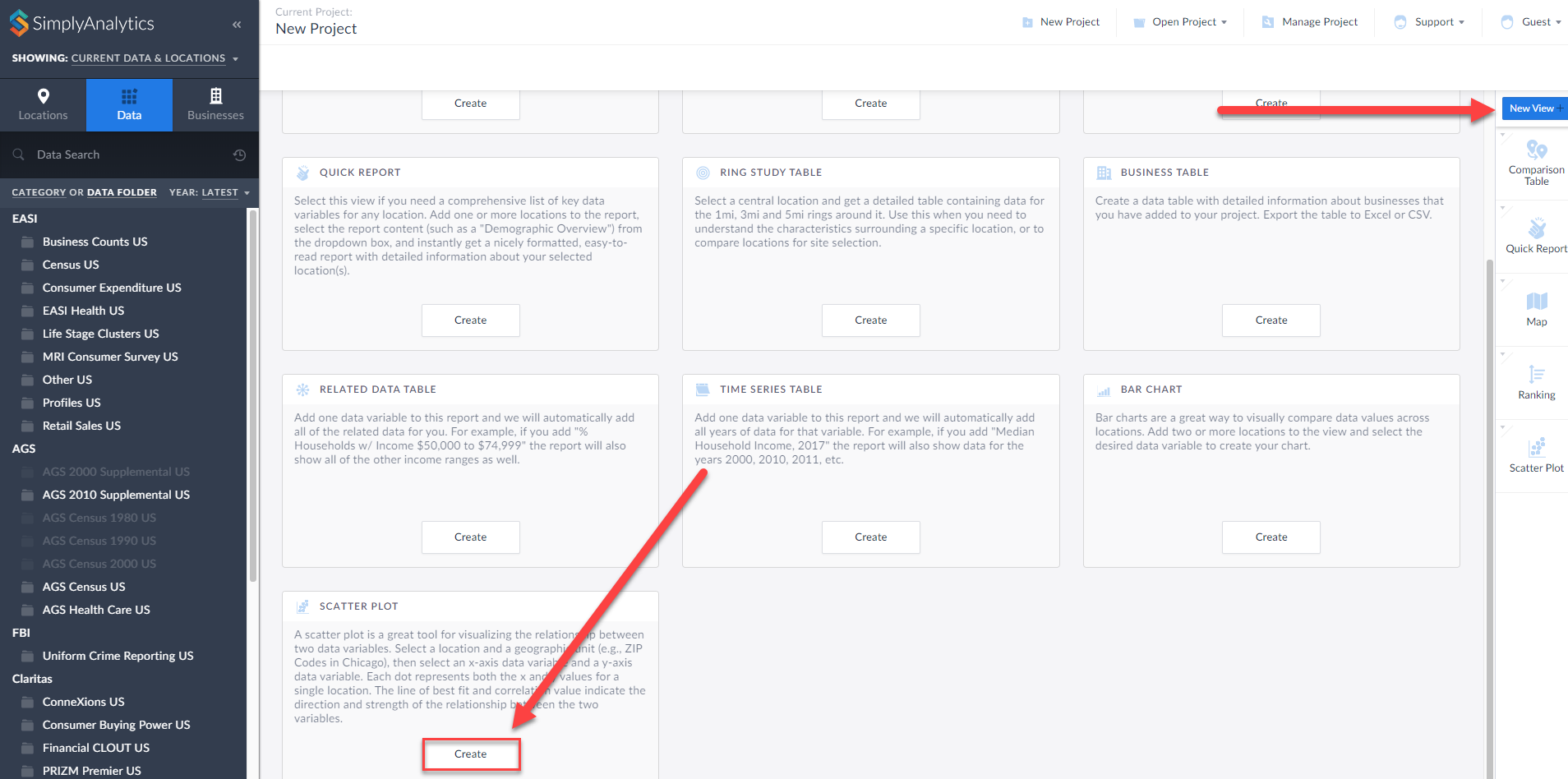
First, click on New View > Create under the Scatter plot option:
The Edit View page displays your data variables and locations in the project.
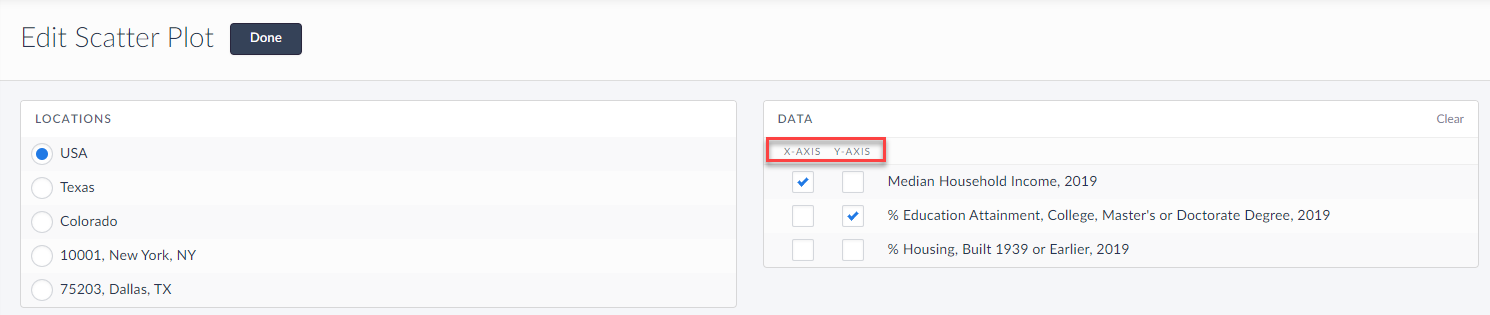
Here you can choose which data variables to display along which axis. Of course, this can be edited directly on the scatter plot as well, but for now, select Done to generate the scatter plot.
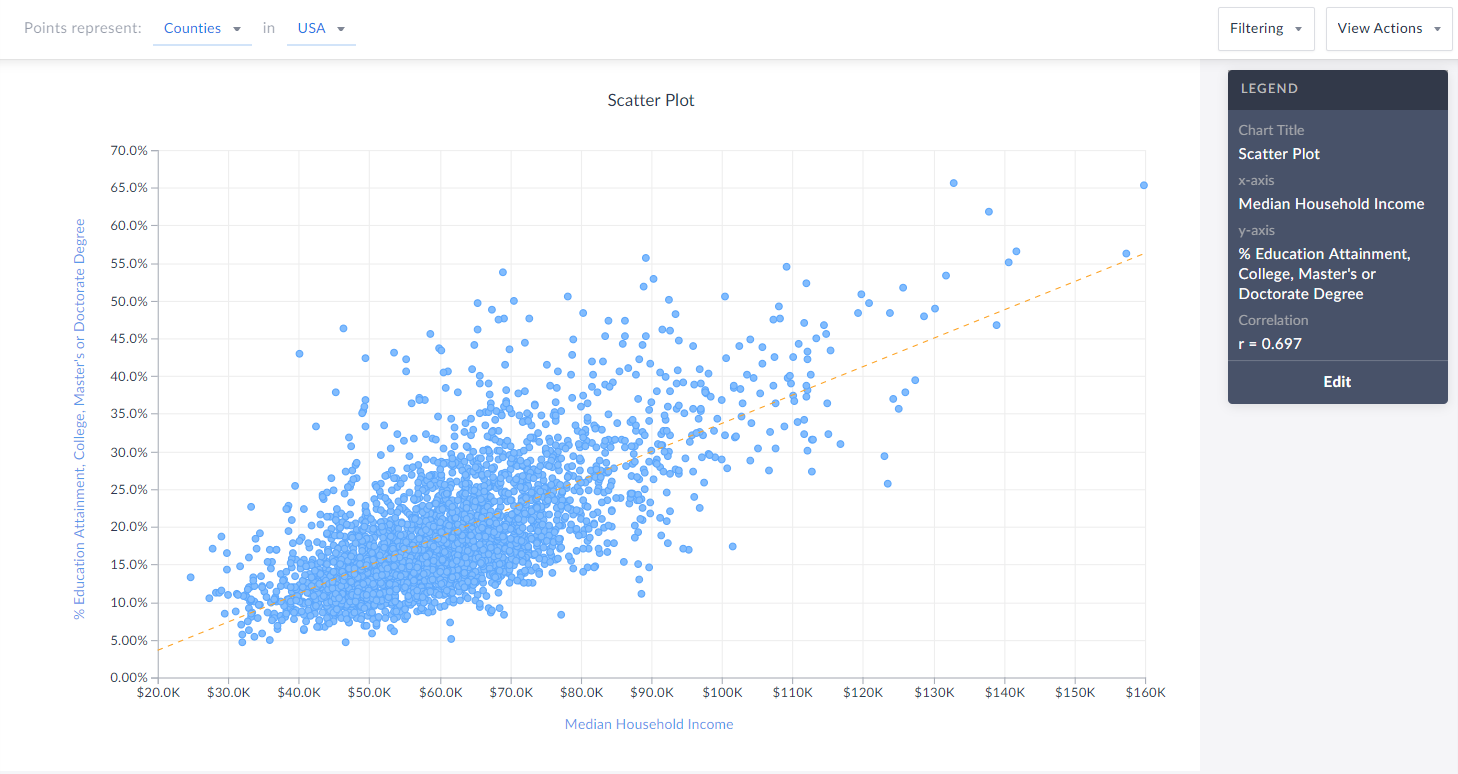
Voila! Your first scatter plot is created. Now, what exactly is this showing?
The top of the view explains what each point represents - in this example, Counties in the USA. The legend towards the right also displays helpful information.
TIP: You can click on any point to display the name and underlying data.
Interpreting Your Scatter Plot
Looking at this scatter plot, there is a strong positive correlation between median household income and the % of adults who have a college degree within CDs in the USA.
The legend has a section heading titled Correlation that contains an “r” value. What does the r-value mean? In short, that’s displaying Pearson’s R - this is a correlation coefficient that’s used in linear regression. The “r” value will always be on a scale from -1 to +1, and you can use these values to understand the relationship between the variables.
A generalization of the scales and how to think of them is:
Positive Direction - The points looks like they are going uphill
1 - perfect correlation
0.75 to 1 - very strong correlation
0.5 to 0.75 - moderate correlation
0.25 - 0.5 - weak correlation
Less than 0.25 - none/no correlation
Negative Direction - The points looks like they are going downhill
-1 - perfect correlation
-0.75 to -1 - very strong correlation
-0.5 to -0.75 - moderate correlation
-0.25 to -0.5 - weak correlation
Less than -0.25 - none/no correlation
The scatter plot above has an r value of 0.697. This means there is a moderate, positive correlation. Does a negative direction/value mean anything bad or wrong? Nope! It just means as the x axis increases, the y axis decreases - nothing negative or incorrect.
Editing Your Scatter Plot
Renaming
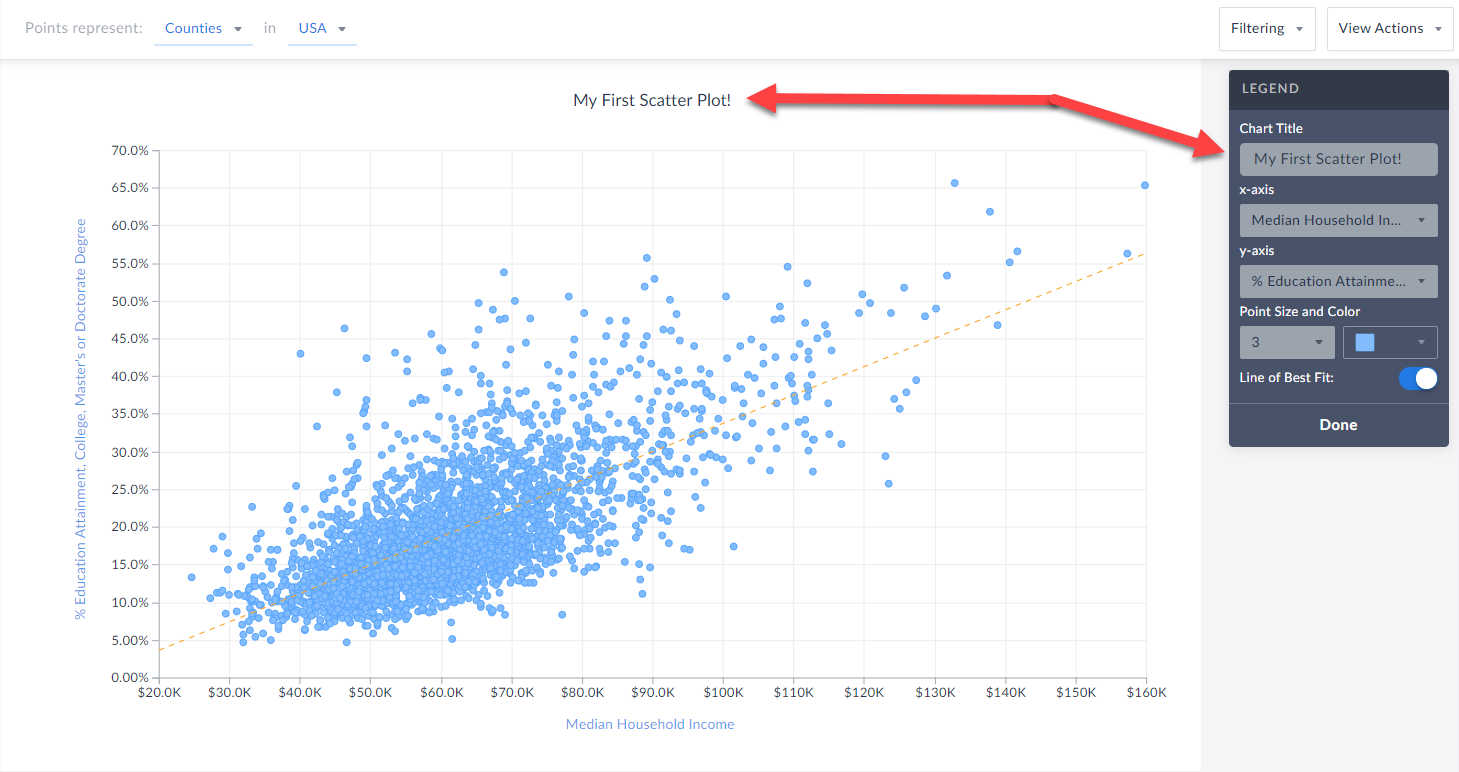
You can rename your scatter plot by either clicking on the heading at the top of the graphic, or by selecting Edit on the legend and renaming there.
 Changing Variables
You are welcome to select either axis in the legend, and change the variable(s) you want to analyze.
Changing Point Size and Color
Feel free to edit these options within the Edit Legend page to change the appearance of your graphic.
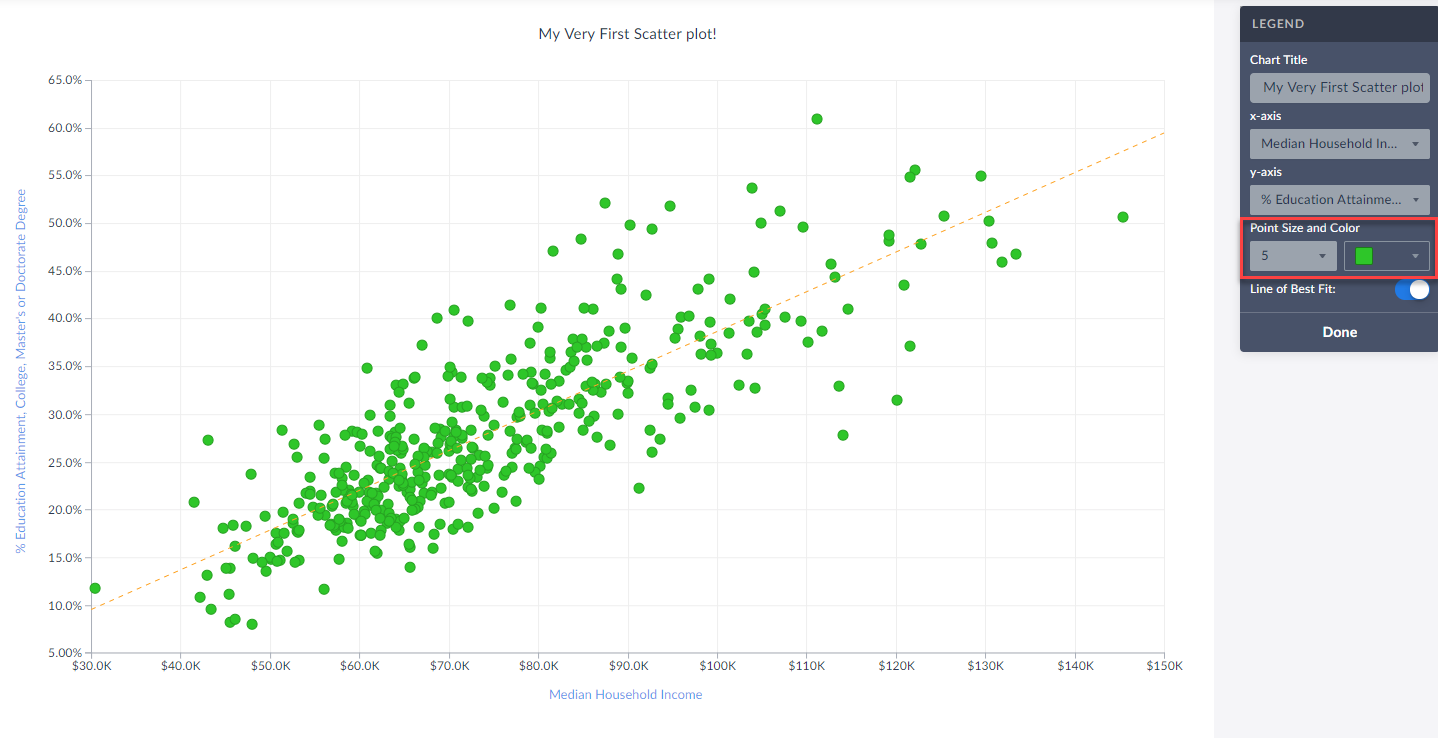
Toggle Off/On the Line of Best Fit
Use this button to toggle between whether or not the line of best fit is present. What is the line of best fit? In short, it is a straight line that best represents the data on a scatter plot.
Advanced
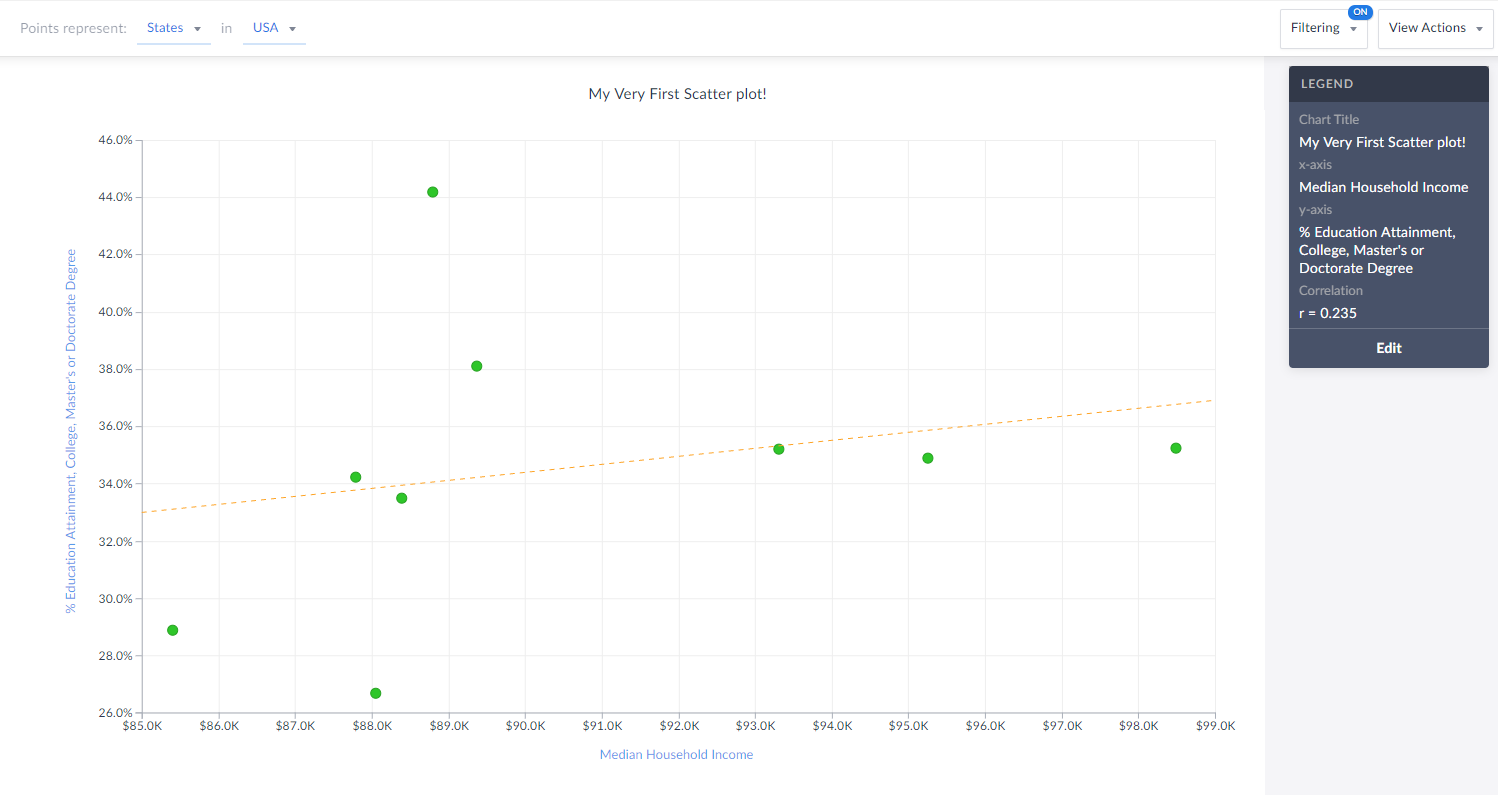
Lastly, you are welcome to create and apply a data filter onto your scatter plot. This will remove any points that do not meet your filter conditions. The image below would normally display all States in the USA, however, there is a median hh income filter applied (inc > $85,000) so you are left with only 9 states (dots) in the chart that meet this criteria.
Also notice how the x-axis has moved to reflect our criteria.
That’s all for today! We’re excited to see some of the interesting scatter plots you can come up with!
Stay safe everyone, and as always, you can access SimplyAnalytics remotely, so please let us know if you are running into any issues with remote access - we are here to help and always available for webinar training sessions.
More from SimplyAnalytics


Posted on Nov 19, 2019 by Admin
Hello readers! Today we are bringing you a new blog entry inspired by a recent Help Desk question. If you ever have any questions about SimplyAnalytics, please do not hesitate to reach ou...
Posted on Jul 30, 2018 by Admin
Hello readers! Welcome to this week’s blog. This week we will feature the Related Data Table view and how you can use it to maximize your productivity in SimplyAnalytics. What is it? The ...
Posted on Dec 15, 2014 by Admin
Custom Locations allow SimplyMap users to combine several locations into one larger region. For example, you can use this feature to combine three adjacent ZIP Codes to create your study ...
Posted on Jan 29, 2016 by Admin
In a previous blog entry, we highlighted the benefits of having multiple years of data available for the same variable. This allows users to identify trends over time. Keeping with the sa...
Posted on Oct 02, 2015 by Admin
In this week’s SimplyMap tip, we wanted to do a quick write up reminding users about the Saved Tabs feature within SimplyMap. Did you know that SimplyMap will automatically save all of yo...
Posted on Apr 30, 2020 by Admin
We find ourselves in the middle of an unprecedented crisis the likes of which most of us have never experienced before, and hopefully won’t have to experience again. There is the occasion...
Posted on Apr 05, 2019 by Admin
Come visit the SimplyAnalytics booth (325) at the upcoming ACRL 2019 show in Cleveland! Say hello, grab a chocolate, and stay for a quick demo of SimplyAnalytics. The team will be showcas...
Posted on Dec 08, 2017 by Admin
Good afternoon, readers! This week we’re going to talk about project management in SimplyAnalytics and how to best take advantage of it. Why are projects needed? Many users have multiple...
Posted on Mar 04, 2020 by Admin
Come meet the SimplyAnalytics team at the 15th annual Electronic Resources and Libraries conference, held at the AT&T Hotel & Conference Center in Austin, TX. We will be exhibitin...
Posted on May 24, 2023 by Admin
SimplyAnalytics is excited to attend. Swing by booth 1733 for a brief demo, and discover how our user-friendly demographics, business, health & marketing data analytics and visualizat...