 Go up
Go up


From the Help Desk - Legend Classification Methods
Posted on Sep 27, 2019 by Admin
Hello readers! This week we provide an in-depth response to a question asking about the legend classification methods in SimplyAnalytics. This response is now part of our Help Center: https://simplyanalytics.zendesk.com/hc/en-us
Question: Can you explain the legend classification methods?
The classification method controls how the data in your map is grouped. Areas on the map are assigned to groups using different classification methods. The colors you see on the map depend on which class is assigned to each area.
There are multiple methods for calculating break points for the data. You can select any of the following from the Classification Method menu:
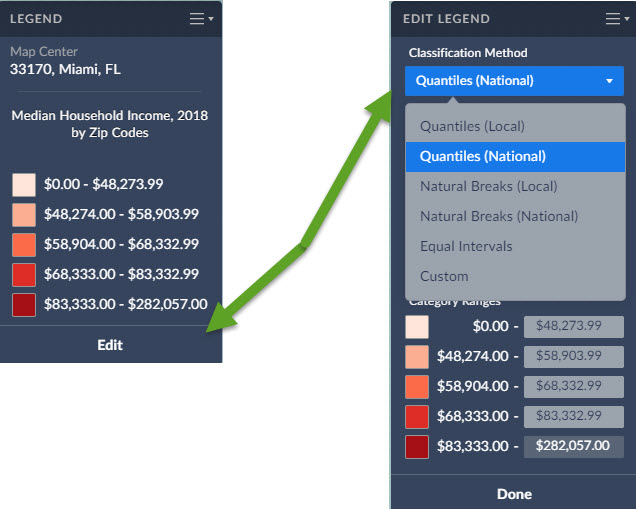
- Quantiles (Local)
- Quantiles (National)
- Natural Breaks (Local)
- Natural Breaks (National)
- Equal Intervals
- Custom
Quantiles (National): This is the default method used to classify each area on the map, and works for most situations. Breakpoints are calculated so that each category contains about the same number of features. "National" uses a sample of locations from throughout the USA to calculate the breakpoints.
Example: If there are 35,000 ZIP Codes nationally and you have 5 categories the legend is calculated so there are theoretically 7,000 ZIPs in each category.
Quantile classes are easiest to understand, but they can be misleading if the data being mapped is not distributed normally. For example, population counts are usually not suitable for quantile classification because only a few places are highly populated. Use population density or percentages for more meaningful maps.
Quantiles (Local): Breakpoints are calculated so that each category contains about the same number of features. "Local" uses a sample of locations from your current view to calculate the breakpoints. This method usually ensures the map will show more colors. For example, if there are 50 ZIP codes visible on your map, and you choose to display them in five classes, the map will show 10 ZIP codes per color.
Natural Breaks (National): Breakpoints are calculated using a statistical formula that finds groupings and patterns in the data. "National" uses a sample of locations from throughout the USA to calculate the breakpoints.
Natural Breaks (Local): Breakpoints are calculated using a statistical formula that finds groupings and patterns in the data. "Local" uses a sample of locations from your current view to calculate the breakpoints.
Equal Intervals: This method uses equal-size intervals for each class and color on the map. Breakpoints are calculated so that each category has the same range. This method doesn't care if all areas on the map end up sharing the same color.
Example: if the lowest value nationwide is 1 and the highest value is 100 for that specific geography the legend will have 5 equal categories 1 to 20, 21 - 40, 41 - 60, 61 to 80 and 81 to 100
Custom: The user selects their own breakpoints by typing in their own values.To set your own custom breakpoints, you can click in each value’s cell and enter a value of your choice. You can also click the colors to customize how the map looks.
More information on data classification/reference:
https://gisgeography.com/choropleth-maps-data-classification/
More from SimplyAnalytics


Posted on Nov 28, 2012 by Admin
Come visit the SimplyMap team at the ALA Midwinter Meeting, January 25 - 28, 2013 in Seattle, WA. We will be in Booth 1307, and as always we look forward to meeting with customers new and...
Posted on Apr 21, 2015 by Admin
In this week’s edition of exploring SimplyMap data, we spotlight the Consumer Buying Power® data package in SimplyMap. What is it? The Nielsen Consumer Buying Power® database incorporates...
Posted on Dec 09, 2014 by Admin
In this week’s SimplyMap blog post, we set out to discover which large US cities spend the most money per year on their pets. To find this out we used the variable, “Pets, Household Avera...
Posted on Feb 24, 2019 by Admin
We will be exhibiting at SCELC* Vendor Day on March 14th. Visit us at table 510 and attend one of our two sessions demonstrating SimplyAnalytics. The presentations will highlight newly av...
Posted on Oct 23, 2009 by Admin
SimplyMap was highlighted in the Wake County, NC Public Library Business Blog today as a valuable tool for business planning. Wake County has access to SimplyMap through NC LIVE, a statew...
Posted on Jul 24, 2013 by Admin
Registration is now open for the North Carolina Library Association Conference! Visit us at the 60th biennial conference (Booth #45) through October 15 - 18, 2013. We have beautiful ca...
Posted on Jun 09, 2021 by Admin
Hello readers! SimplyAnalytics will be exhibiting at the Virtual ALA Annual Conference this year on June 23-26. Be sure to drop by our booth, and click the banner image to video chat with...
Posted on Jan 24, 2009 by Admin
Men's Health magazine took a look this month at where our wireless habits are most out of control. Their methodology includes the use of SimplyMap: First, we crunched data from SimplyMap...
Posted on Dec 08, 2017 by Admin
Good afternoon, readers! This week we’re going to talk about project management in SimplyAnalytics and how to best take advantage of it. Why are projects needed? Many users have multiple...
Posted on Sep 03, 2015 by Admin
This week we explore the SimmonsLOCAL data package to find which cities in America have the highest percentage of residents enrolled in a frequent flyer program. SimmonsLOCAL is available...