 Go up
Go up


Using Multiple Filter Conditions
Posted on Apr 14, 2016 by Admin
This week’s SimplyMap report will provide an overview of one of the more advanced functionalities in SimplyMap - applying multiple filter conditions. Filters can be applied to any map or report tabs. For example, a map showing Household income levels by ZIP Code could be filtered to only show ZIP Codes with income over a specific threshold. Another example would be to filter the same income map to only show ZIP Codes with a population over 8,000. Using multiple filter conditions is a great way to hone your focus on a narrower set of geographic locations that meet your multiple criteria. Let’s get started with an example.
Scenario: You are looking for the best location to open up a high end salon in California and want to develop an initial list to further analyze. Let’s assume there are three criteria that must be met before considering a location.
1. The location has to have more than 500,000 residents.
2. The location must have a median household income of at least 75,000.
3. At least 30% of households must report spending money at a salon.
The Setup: First, create a new Location Analysis Report and set your location to California. Next, navigate through some pertinent variables and add the following variables that will serve as our criteria.
# Population, Total (Census Data » People and Households » Age » Total)
Household Inc., Median (Census Data » People and Households » Income » HH Income)
% Households Buying - Expenditures: Amount Spent In Total: Beauty Parlor (MRI Consumer Survey » Purchasing » Average HH Spending)
After you have added all variables you are interested in, close out the Variables panel to generate your report. Results below:
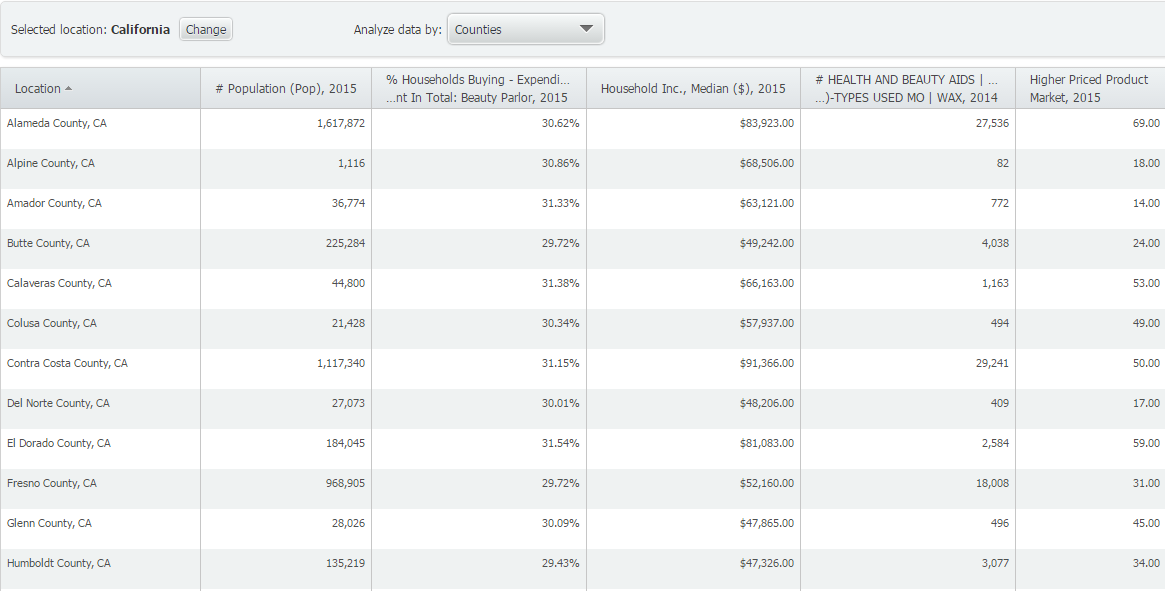
Your initial results will display all counties in California. To create a filter, click on Data Filters > Create New Filter from the top right of SimplyMap. The filter creation dialog will open up.
NOTE: The only variables that will show up as possible filter criteria in the variable dropdown will be either recently used variables, or favorite variables. In this case, we have the variables already in the report, so by default they will show under recently used variables.
1. Select the first dropdown and click on the beauty parlor variable. Leave the second dropdown to “is greater than” and enter a value of 30 in the last box.
2. Click on Add Another Condition to bring up a second variable selection box - choose the population variable and set that to “is greater than” 500,000.
3. Lastly, click on Add Another Condition once more, and find the Median Household Income variable - set this value to “is greater than” 75,000.
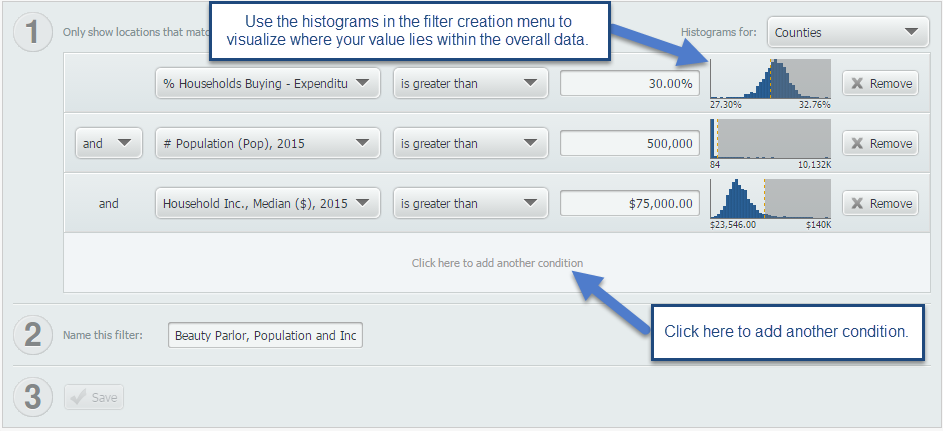
Give your filter a name, and click on SAVE to apply it onto your report. New results below!
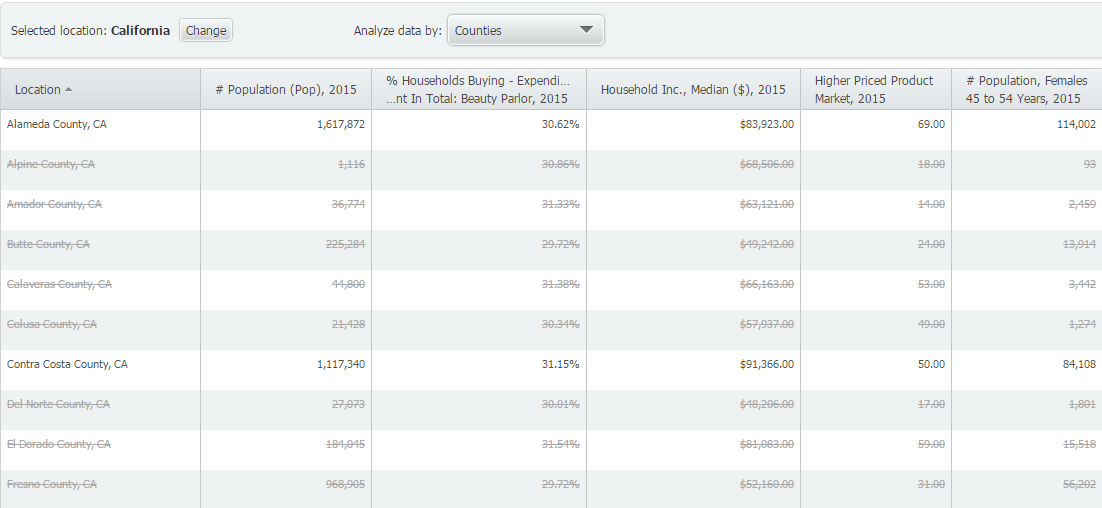
Locations that do not meet your three conditions are then struck out with a line and seen in light gray. If you’d like to hide these locations, click on Display Options > Filtered Locations > Hide. Your final report is shown below:
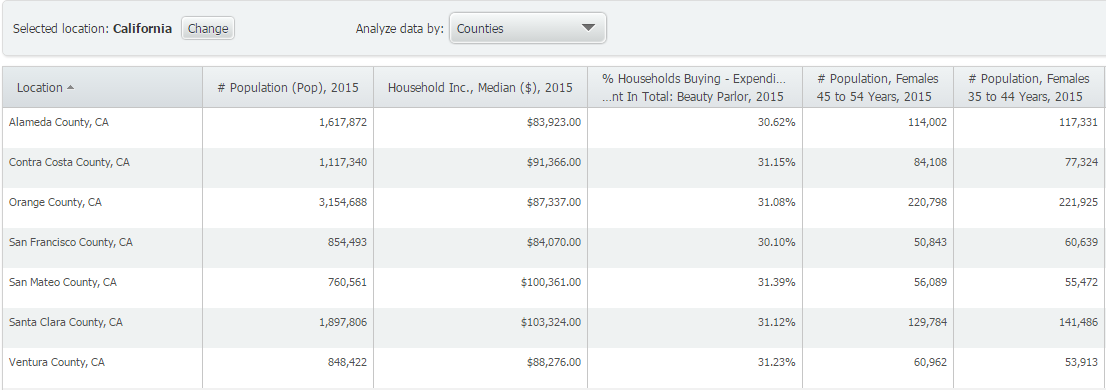
Only 7 of California’s 58 counties meet our specific criteria.
A logical next step for someone doing market research would be to analyze specific ZIP Codes or census tracts within these counties more in depth, and run business reports to see what the competition is like in the target areas.
Do you have any questions on creating and applying filters? Feel free to leave a comment below or send as an email at: support@geographicresearch.com
More from SimplyAnalytics


Posted on May 06, 2013 by Admin
The GRI team is looking forward to exhibiting at SLA 2013 at the San Diego Convention Center, June 9th through the 11th. The Special Libraries Association (SLA) is a nonprofit global orga...
Posted on Dec 02, 2019 by Admin
Hi everybody! We’re back this week with another question from our Help Desk. This time featuring SimplyAnalytics Canada. Let’s get started! Question: How can I analyze all of the PRIZM5 s...
Posted on Feb 01, 2009 by Admin
Want to know the top 10 wealthiest ZIP codes in your state? How about the top 25 counties with the most elderly residents? Duke University students can now easily answer these questions a...
Posted on Feb 20, 2018 by Admin
We are looking forward to attending the annual SCELC (Statewide California Electronic Library Consortium) Vendor day, at Loyola Marymount University in Los Angeles on March 8th. In additi...
Posted on May 23, 2012 by Admin
We will be exhibiting at the Special Libraries Association (SLA) annual conference and Info-Expo at McCormick Place in Chicago Sunday June 15th - Tuesday July 17th. Visit us at Booth 124 ...
Posted on Oct 26, 2016 by Admin
In this week’s SimplyMap report, we’ll take a look at the tags feature and demonstrate how it can be useful for you as you work in SimplyMap. SimplyMap users can have up to 20 tabs open i...
Posted on Mar 03, 2016 by Admin
In this week’s SimplyMap report we take a look into the SimmonsLOCAL dataset to determine which cities in America have the highest percentage of residents who consume organic food product...
Posted on Jun 25, 2015 by Admin
In this week’s SimplyMap report, we review the different options available when searching for a business. The easiest and fastest method of mapping businesses or creating a business repor...
Posted on Apr 30, 2020 by Admin
We find ourselves in the middle of an unprecedented crisis the likes of which most of us have never experienced before, and hopefully won’t have to experience again. There is the occasion...
Posted on Nov 24, 2014 by Admin
In this week’s report, we research America’s most educated cities. SimplyMap contains a total of 111 educational attainment variables, including general population and by race. We used th...