 Go up
Go up


Feature Highlight: Data Filters
Posted on Apr 23, 2018 by Admin
Hello everyone and welcome to this week’s blog. This week we will discuss how to create and utilize filters for your research.
Why Use a Filter?
Filters are a great way to identify target areas that meet multiple conditions.
Use Case
You want to identify areas of San Antonio to market your afterschool program that is aimed towards low income and low educational attainment areas. You can use a data filter to help find the target areas.
Example
First, we will identify the target areas by creating an income filter and mapping the education attainment variable. Let’s get started.
1.Create the project by entering the target location for analysis in the Location field. In this example, the city of San Antonio, TX.
2. Map the variable % Education, College, Masters or Doctorate Degree. This is one of the 3 default data variables available when creating a project.
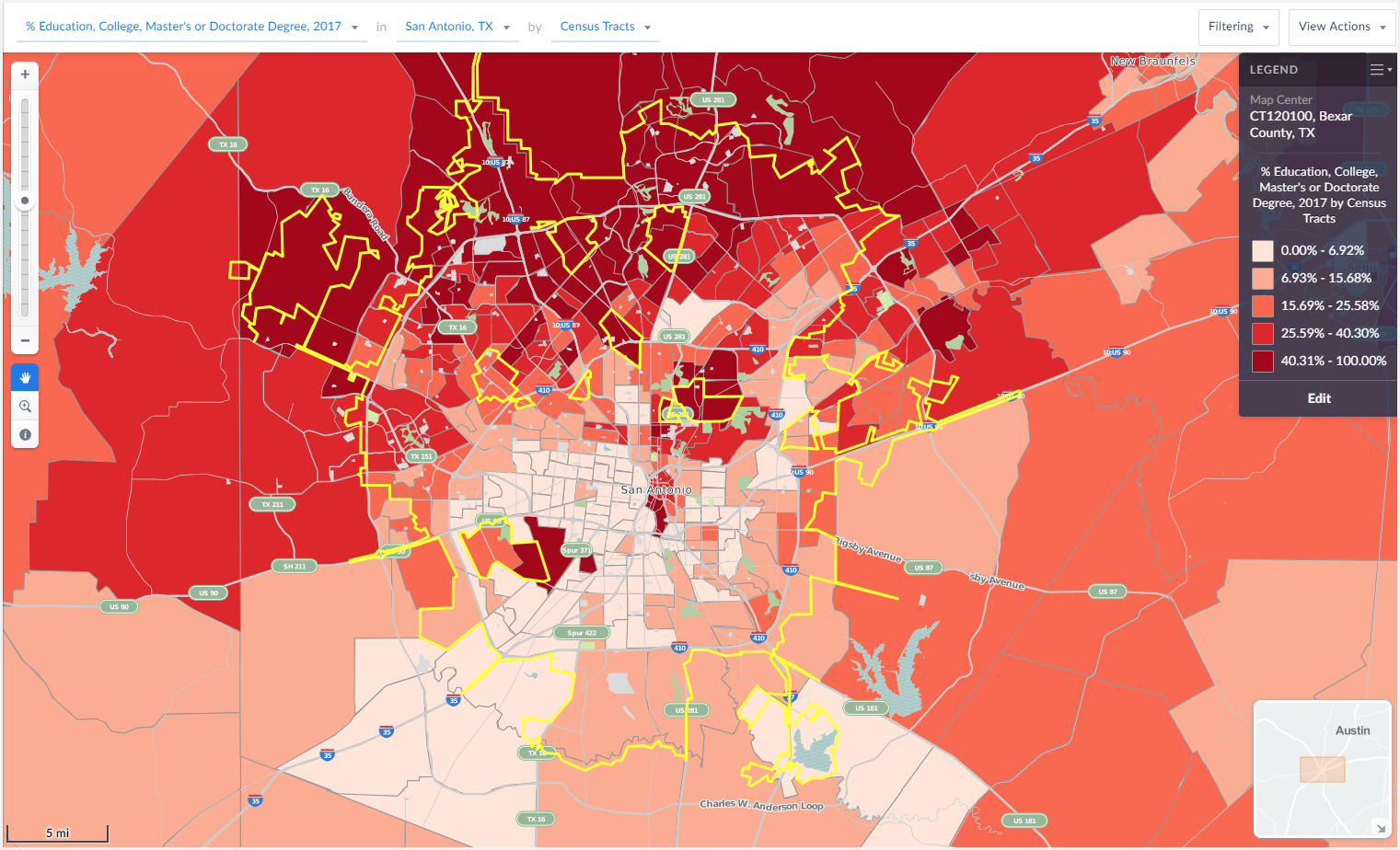
The darker areas of the map represent highly educated areas whereas the lighter areas reflect areas where a smaller percentage of residents have a college degree.
Next, create the income data filter.
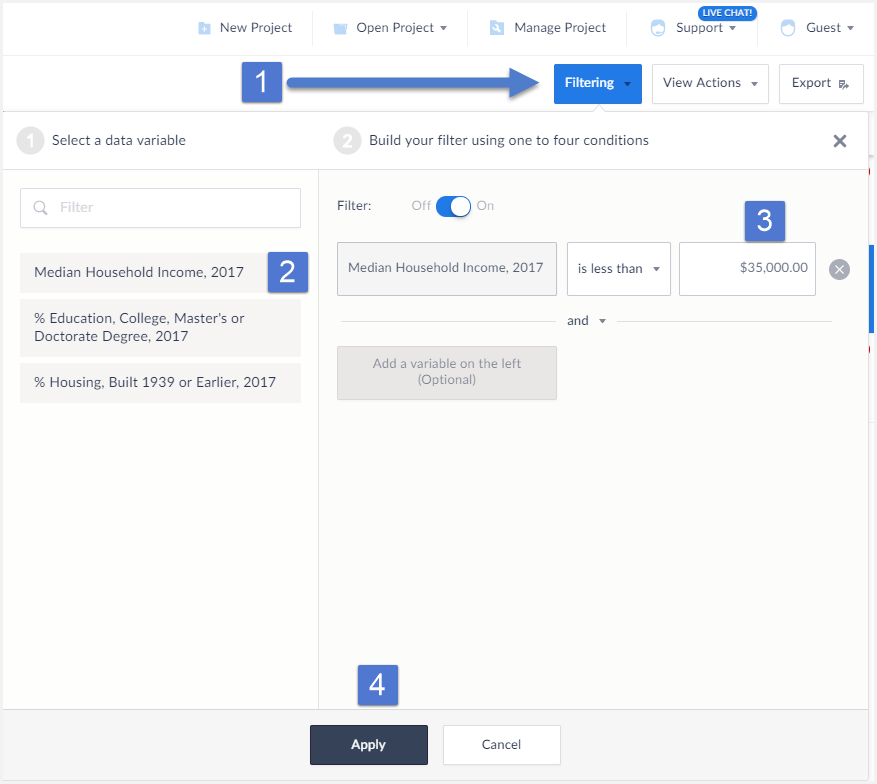
- Select Filtering from the top Right of the interface. This will bring up the filter menu.
- Select a variable to act as a condition, in this example we want the Median Income variable.
- Enter a value for the condition (less than $35,000) and select Apply.
The filter gets applied to your map.
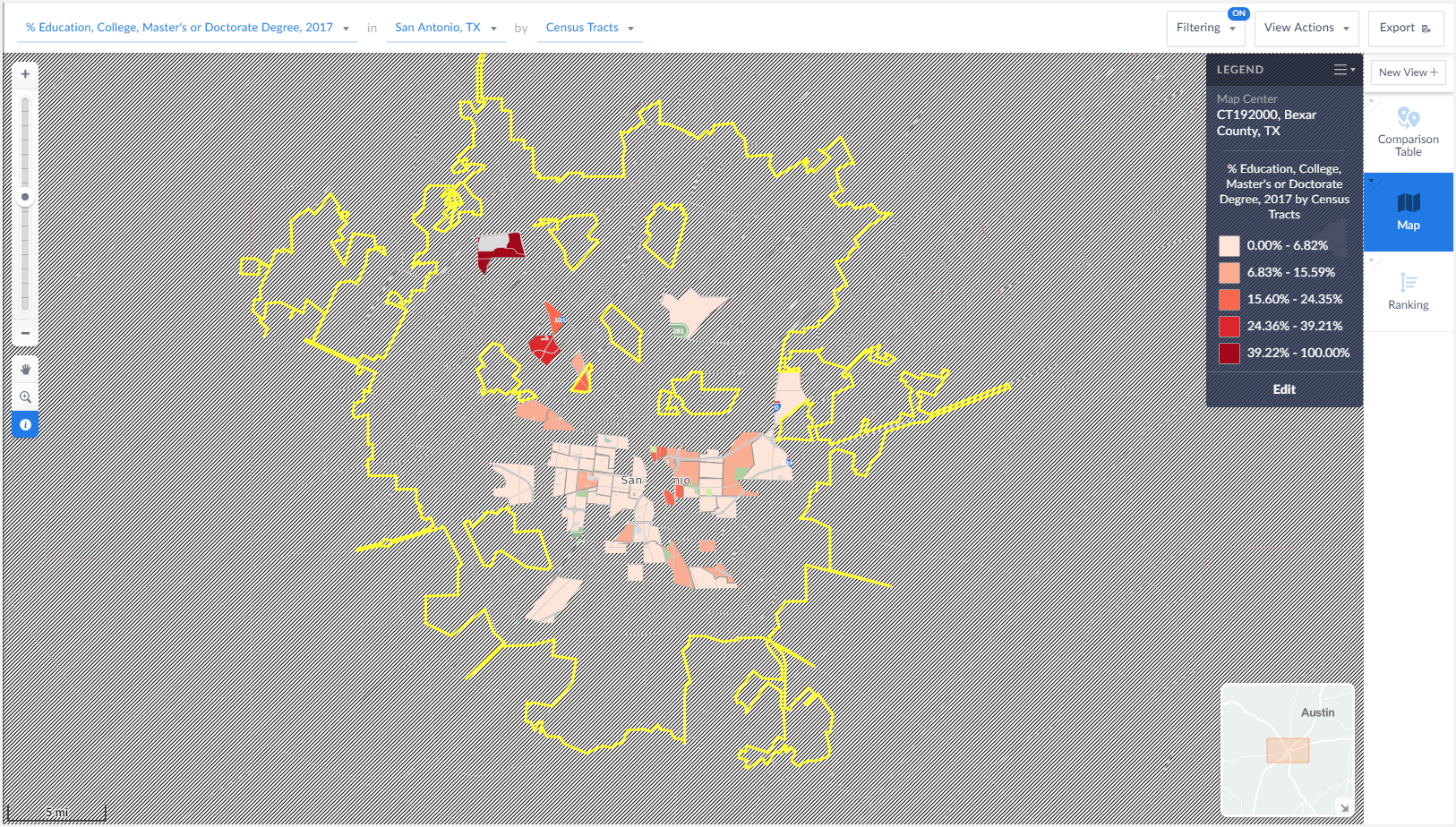
The final map image above reveals Census Tracts that meet our income criteria - looking at the still visible mapped areas provides the user with some ideal locations to market their program to.
That’s it for this week’s report! Stay tuned for more SimplyAnalytics how-tos and tips and send us your questions at support@simplyanalytics.com. If we feature your question in a future blog post, we’ll treat you to a $10 Starbucks gift card!
More from SimplyAnalytics


Posted on Aug 30, 2009 by Admin
Jeff Zaslow, Wall Street Journal columnist and co-author of the The Last Lecture, will speak at the Orlando, FL Public Library on Friday, September 11 at 7 p.m. Zaslow helped the late Ran...
Posted on May 08, 2018 by Admin
We will be exhibiting at the SLA conference in Baltimore, MD this June. Stop by booth #912 and say hello - we look forward to demonstrating SimplyAnalytics, answering your questions, and ...
Posted on Jan 08, 2018 by Admin
The SimplyAnalytics team will be exhibiting at ALA Midwinter in Denver February 9-12. Stop by booth 2152 for a visit and a tour of SimplyAnalytics, the best-in-class analytics and data vi...
Posted on Jul 09, 2015 by Admin
In this week’s SimplyMap report, we set out to find which cities have the highest percentages of people who use their bike as their mode of transportation to work in the US. Let’s get sta...
Posted on Nov 28, 2023 by Admin
Hello readers! We are happy to announce that SimplyAnalytics has successfully migrated to the Census 2020 boundaries on Sunday, November 19th. This blog will talk about what that is, what...
Posted on Jun 07, 2011 by Admin
We will be exhibiting at the Special Library Association Annual Conference in Philadelphia and the American Library Association conference in New Orleans later this month. Come and visit ...
Posted on Nov 03, 2017 by Admin
This week we’ll talk about one of our favorite features in SimplyAnalytics - the custom combination location. This feature is a simple and effective means to create custom geographies whe...
Posted on Aug 15, 2013 by Admin
Anyone who has traveled to Seattle hoping for a sunny day could fairly estimate that it is one of the rainiest states with the highest level of precipitation each year. SimmonsLOCAL varia...
Posted on Jan 16, 2026 by Admin
We are excited to be exhibiting at the Public Library Association (PLA) 2026 Conference in Minneapolis this April 1-3!
Posted on May 15, 2015 by Admin
In this week’s SimplyMap report, we want to share with you the many options available when exporting maps in SimplyMap. In SimplyMap, when a user selects Export Map Image from the Actions...