 Go up
Go up


Managing Projects in SimplyAnalytics
Posted on Dec 08, 2017 by Admin
Good afternoon, readers! This week we’re going to talk about project management in SimplyAnalytics and how to best take advantage of it.
Why are projects needed?
Many users have multiple unique projects going on at the same time. For example, you could be doing: personal research, patron/student assistance, research for a presentation, etc. Projects help keep these unique activities separate from one another to avoid confusion.
What is stored in each project?
All of the locations, variables, business searches, favorites, views, etc. that you use are saved with the project - so each time you login, you can pick up right where you left off.
Getting Started:
The first recommendation we have is to rename your project. You can do this by selecting the “New Project” default title towards the top left of your screen.
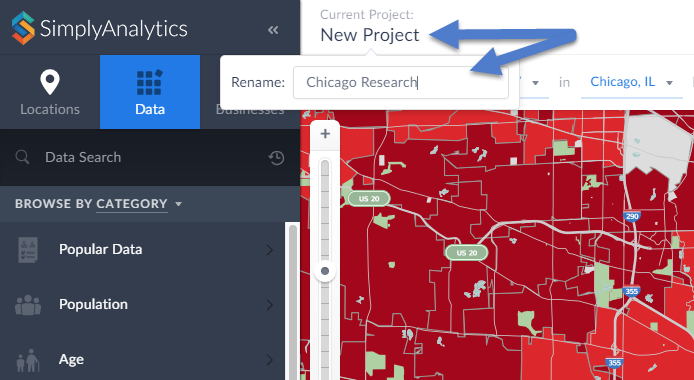
Enter a new name within the available text field and hit Enter to save your current project.
Managing Your Project:
Select Manage Project from the top-right of your screen. From here you will have some editing options available:
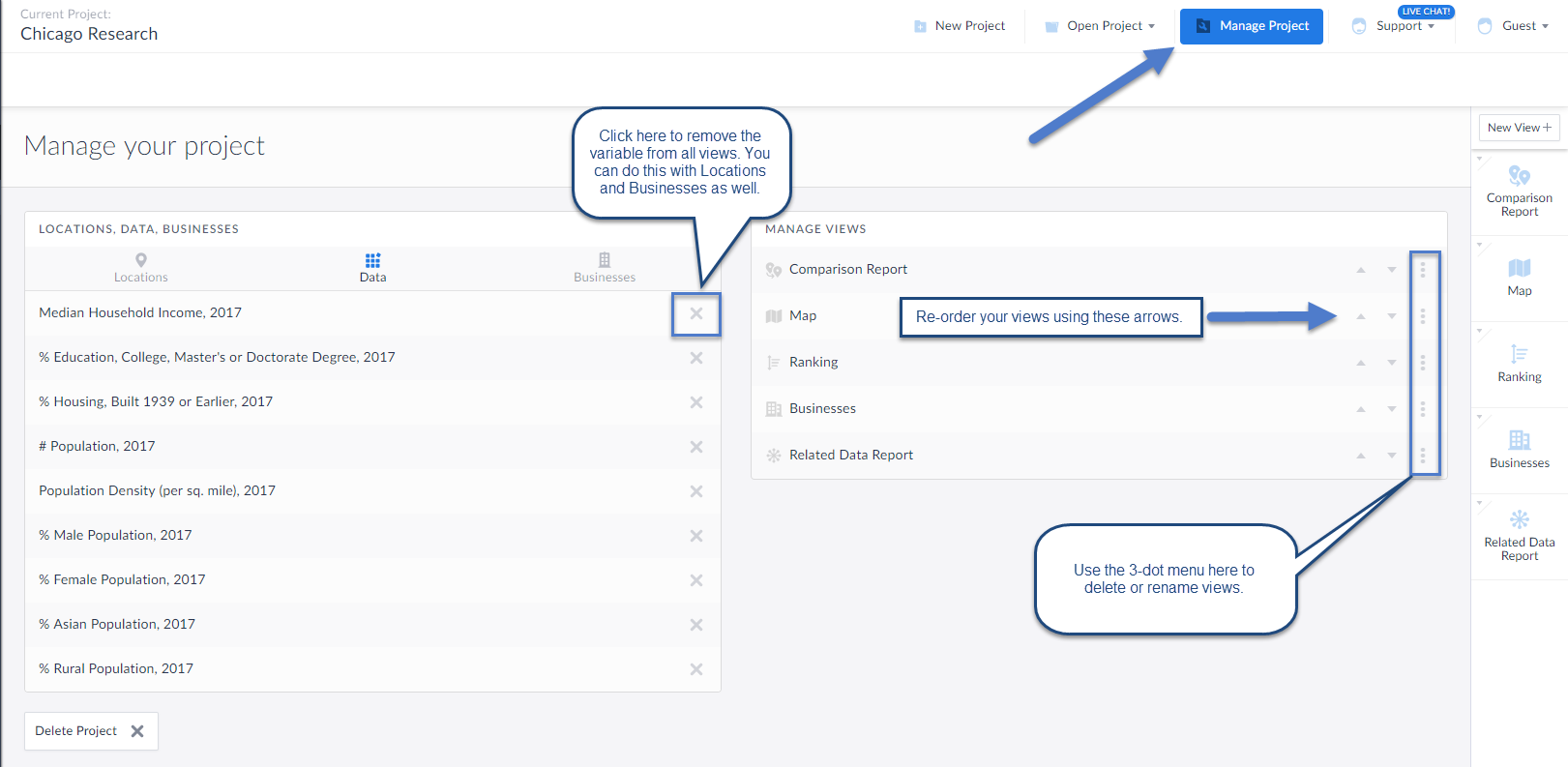
You can choose to remove any locations, data variables or searches within your project using the options available towards the left of your workspace. This will remove those items from all views they reside in along with removing them from the Edit View screen.
Manage Views: The three-dot menu within this area will allow you to delete or rename the view. Additionally, the up and down arrows will allow you to arrange your views in order of how they appear on the right-hand side of the interface.
Creating a New Project: Select New Project to get started with a brand new project (no locations, variables, searches).
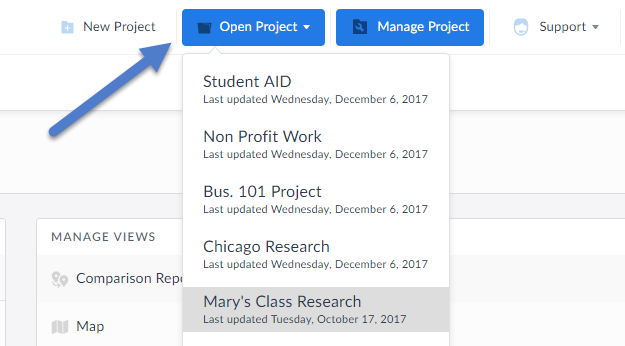
You can always select Open Project to toggle back to older projects.
That’s it for this week’s blog, stay tuned for more!
More from SimplyAnalytics


Posted on May 03, 2011 by Admin
The GRI team is very excited to announce the launch of SimplyMap 2.0! Completely redesigned, it is now easier than ever to access data and create professional quality thematic maps and re...
Posted on Sep 20, 2011 by Admin
Men's Health magazine has once again published rankings that include research from SimplyMap. They ranked the most (and least) educated cities in America. In addition to several other sou...
Posted on Feb 05, 2015 by Admin
Our Winter Sweepstakes has begun! Enter to win an iPad Mini 3 or Kindle Fire. How to Enter: Follow @SimplyMap on Twitter Like our SimplyMap Facebook Page for a 2nd Chance to Win If you ...
Posted on Dec 07, 2021 by Admin
Hello readers! We hope you are enjoying the holiday season as much as we are. Today, we are happy to announce a couple of improvements to SimplyAnalytics designed to help you get your res...
Posted on Jul 20, 2020 by Admin
Hello readers! We hope you are doing well and staying safe. Today we are excited to introduce the Simmons NCS crosstabs functionality! This is a feature we’ve been working on for a while,...
Posted on Aug 20, 2015 by Admin
Is there a specific age group and income bracket you are specifically interested in researching for a target location? Our Life Stages module has the information you need. Life Stages, by...
Posted on Oct 08, 2008 by Admin
Geographic Research, Inc. (GRI) is pleased to sponsor the fourth annual American Collegiate Retailing Association’s Undergraduate Student Retail Analysis Competition. This is the second ...
Posted on Feb 19, 2016 by Admin
Drop by booth #857 at PLA 2016 to meet the SimplyMap team and learn more about the features and functions behind SimplyMap. Have a Ghirardelli Chocolate while we present SimplyMap and off...
Posted on Feb 01, 2009 by Admin
Want to know the top 10 wealthiest ZIP codes in your state? How about the top 25 counties with the most elderly residents? Duke University students can now easily answer these questions a...
Posted on Mar 04, 2020 by Admin
Come meet the SimplyAnalytics team at the 15th annual Electronic Resources and Libraries conference, held at the AT&T Hotel & Conference Center in Austin, TX. We will be exhibitin...